Collaborative Design Process: Figma Pro Trial Workflow
In today's fast-paced digital landscape, design collaboration has become the backbone of successful product development. Whether you're working with a distributed team across different time zones or sitting in the same office, the way designers, developers, and stakeholders collaborate can make or break a project. Enter Figma Pro – a game-changing platform that has revolutionized how creative teams work together.
If you're considering upgrading to Figma Pro or currently exploring the trial version, you're probably wondering how to maximize its collaborative features. Having worked with countless design teams over the years, I've witnessed firsthand how the right workflow can transform chaotic design processes into streamlined, efficient operations. Let me walk you through everything you need to know about leveraging Figma Pro's collaborative capabilities during your trial period.

Understanding Figma Pro's Collaborative Advantages
Figma Pro isn't just an upgrade – it's a complete transformation of how your team approaches design collaboration. The platform offers unlimited projects, advanced version history, and team libraries that serve as the foundation for seamless teamwork. What sets Figma Pro apart from its free counterpart is the depth of collaborative features that enable real-time communication and iteration.
The beauty of Figma Pro lies in its cloud-based architecture. Unlike traditional design tools that require constant file sharing and version management, Figma Pro creates a single source of truth that everyone can access simultaneously. This eliminates the dreaded "final_final_v2" file naming conventions that plague many design teams.
During your trial period, you'll immediately notice how multiple team members can work on the same file without conflicts. Cursors show who's working where, comments appear in real-time, and changes are automatically saved and synced across all devices. This level of transparency creates an environment where collaboration feels natural rather than forced.
Setting Up Your Team Structure for Maximum Efficiency
The first step in creating an effective Figma Pro workflow involves establishing a clear team structure. Think of your Figma organization as a digital workspace that mirrors your company's hierarchy and project needs. Start by creating teams that align with your actual working groups – perhaps one for the design team, another for product managers, and a third for developers.
Proper permission management becomes crucial here. Figma Pro allows you to assign different access levels, from view-only permissions for stakeholders to full editing rights for core team members. I've found that being strategic about permissions prevents confusion and maintains project integrity while still encouraging input from all relevant parties.
Consider creating a naming convention for your projects and files before diving deep into design work. Consistency in file organization might seem trivial, but it becomes invaluable when your team grows or when new members join mid-project. A well-structured workspace saves countless hours that would otherwise be spent hunting for specific files or assets.
Establishing Design Systems and Component Libraries
One of Figma Pro's most powerful collaborative features is the ability to create and maintain shared component libraries. These libraries serve as the single source of truth for your design system, ensuring consistency across all projects while enabling rapid prototyping and iteration.
Building a comprehensive component library requires initial investment, but the payoff in collaborative efficiency is enormous. When team members can simply drag and drop pre-built components instead of recreating elements from scratch, the entire design process accelerates. More importantly, when changes are needed, updating the master component automatically propagates changes across all instances throughout your projects.
During your Figma Pro trial, focus on identifying the most commonly used elements in your designs. Start with basic components like buttons, form fields, and navigation elements, then gradually expand to more complex patterns. The key is to think systematically about how these components will be used across different projects and team members.
Documentation plays a crucial role in component library success. Use Figma's description fields and commenting features to provide clear guidance on when and how to use specific components. This documentation becomes especially valuable when onboarding new team members or when revisiting projects after extended periods.
Implementing Real-Time Feedback Workflows
The commenting and annotation system in Figma Pro transforms how teams handle feedback and revisions. Instead of lengthy email chains or separate feedback documents, stakeholders can provide contextual comments directly on design elements. This immediate, visual feedback loop accelerates decision-making and reduces miscommunication.
Establish clear protocols for how your team will use comments. Some teams prefer to use comments for all feedback, while others reserve them for specific types of input. Whatever approach you choose, consistency is key. Consider creating comment templates or guidelines that help team members provide constructive, actionable feedback.
The notification system in Figma Pro ensures that relevant team members stay informed about project updates without being overwhelmed by irrelevant information. Customize notification settings based on each person's role and involvement level. Designers might want notifications for all comments on their files, while stakeholders might only need updates on major milestones.
Version Control and Design History Management
Unlike traditional design tools where version control requires manual effort and discipline, Figma Pro automatically maintains a comprehensive history of all changes. This feature becomes invaluable during collaborative projects where multiple people are making simultaneous edits or when you need to revert to previous iterations.
The version history feature allows you to create named versions at key milestones, making it easy to track progress and return to specific points in the design process. During your trial, experiment with creating versions before major design reviews or client presentations. This practice provides insurance against unwanted changes while maintaining a clear project timeline.
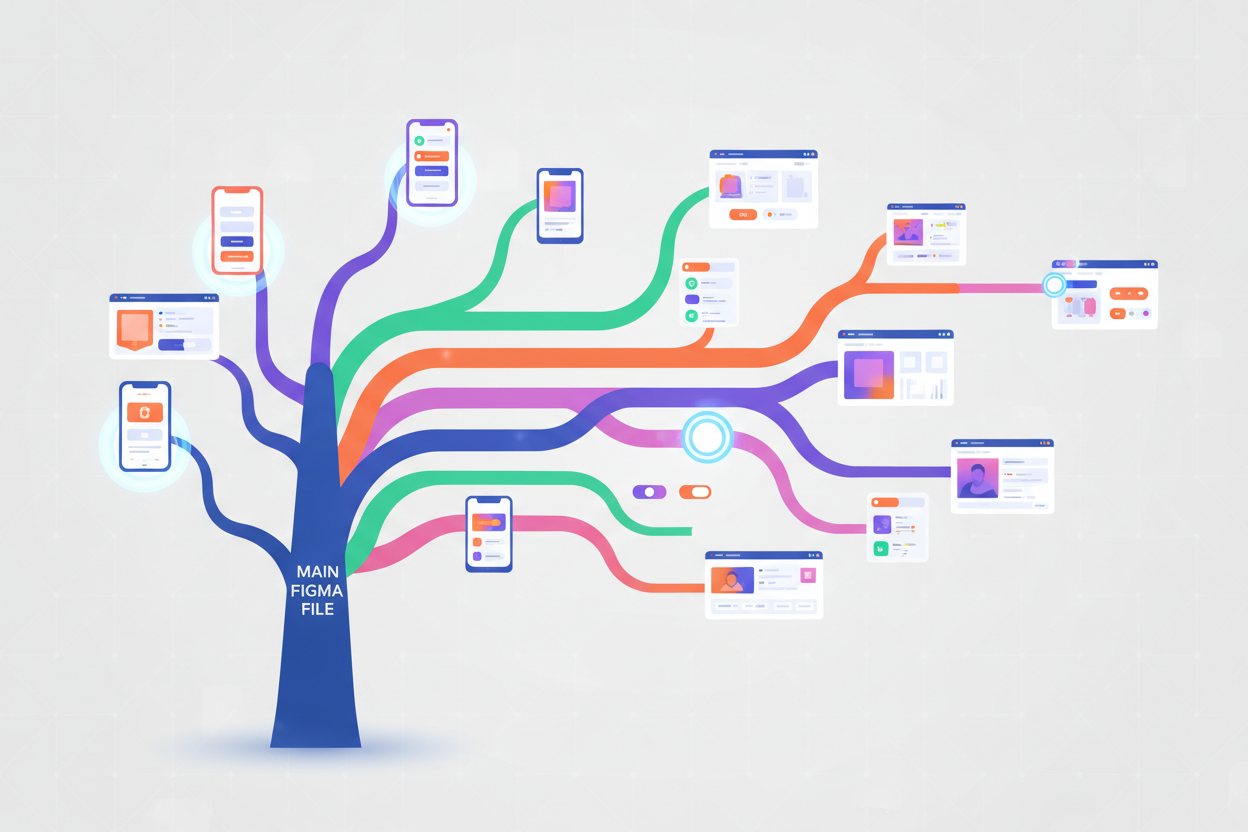
Branching, available in Figma Pro, enables parallel exploration of design concepts without affecting the main file. This feature is particularly valuable when team members want to experiment with different approaches or when working on features that might not make it into the final product. Branches can be merged back into the main file when ideas prove successful, maintaining a clean project history.
Integrating Development Handoff Processes
The collaboration between designers and developers often represents the biggest challenge in product development workflows. Figma Pro's developer handoff features bridge this gap by providing automatic code generation, precise measurements, and asset exports that developers need to implement designs accurately.
The inspect panel in Figma Pro generates CSS, iOS, and Android code snippets that developers can use as starting points for implementation. While this generated code rarely represents the final solution, it provides a valuable reference that speeds up the development process and reduces back-and-forth communication about design specifications.
Asset management becomes seamless with Figma Pro's export capabilities. Developers can export assets in multiple formats and resolutions directly from the design files, eliminating the need for designers to manually prepare and deliver assets. This self-service approach reduces bottlenecks and ensures that developers always have access to the most current versions of design assets.
Optimizing Team Communication and Meetings
Figma Pro's collaborative features can significantly reduce the need for status meetings and design reviews. However, when meetings are necessary, the platform's presentation mode and real-time collaboration capabilities make them more productive and engaging.
Use Figma's presentation mode to walk stakeholders through design concepts during virtual or in-person meetings. The ability to navigate between frames while maintaining the design context helps audiences understand user flows and design rationale more effectively than static presentations.
Consider implementing regular design critique sessions using Figma Pro's collaborative features. These sessions can happen asynchronously through comments or synchronously with screen sharing and real-time editing. The key is establishing a rhythm that works for your team's schedule and time zones.
Measuring Success and Iteration
Throughout your Figma Pro trial, pay attention to metrics that indicate improved collaboration. Track how quickly design iterations happen, measure the time between design completion and development handoff, and monitor the frequency of miscommunication-related delays.
The activity feed in Figma Pro provides insights into team engagement and project velocity. Use this information to identify bottlenecks in your workflow and adjust processes accordingly. Perhaps certain types of projects require different collaboration approaches, or maybe specific team members need additional training on Figma Pro features.
Gather feedback from all team members about their experience with the new collaborative workflow. Developers might have different perspectives than designers, and stakeholders might identify pain points that the core team hasn't considered. This feedback becomes crucial for making an informed decision about continuing with Figma Pro beyond the trial period.
Conclusion
The Figma Pro trial period offers an excellent opportunity to transform your team's collaborative design process. Success depends not just on understanding the platform's features, but on thoughtfully implementing workflows that align with your team's specific needs and working styles.
Remember that adopting new collaborative tools requires patience and iteration. What works perfectly for one team might need adjustment for another. Use your trial period to experiment with different approaches, gather feedback, and refine your processes. The investment in establishing solid collaborative workflows during the trial will pay dividends long after you've committed to the platform.
The key to maximizing Figma Pro's collaborative potential lies in viewing it not just as a design tool, but as a communication platform that brings together diverse perspectives and skills. When implemented thoughtfully, these collaborative workflows don't just improve efficiency – they create better design outcomes through enhanced teamwork and shared understanding.
0 Response to "Collaborative Design Process: Figma Pro Trial Workflow"
Post a Comment